Collage Studio

Add your photos...

A scattered pile of your photos

Turn your images into a print-ready collage — all in your browser.

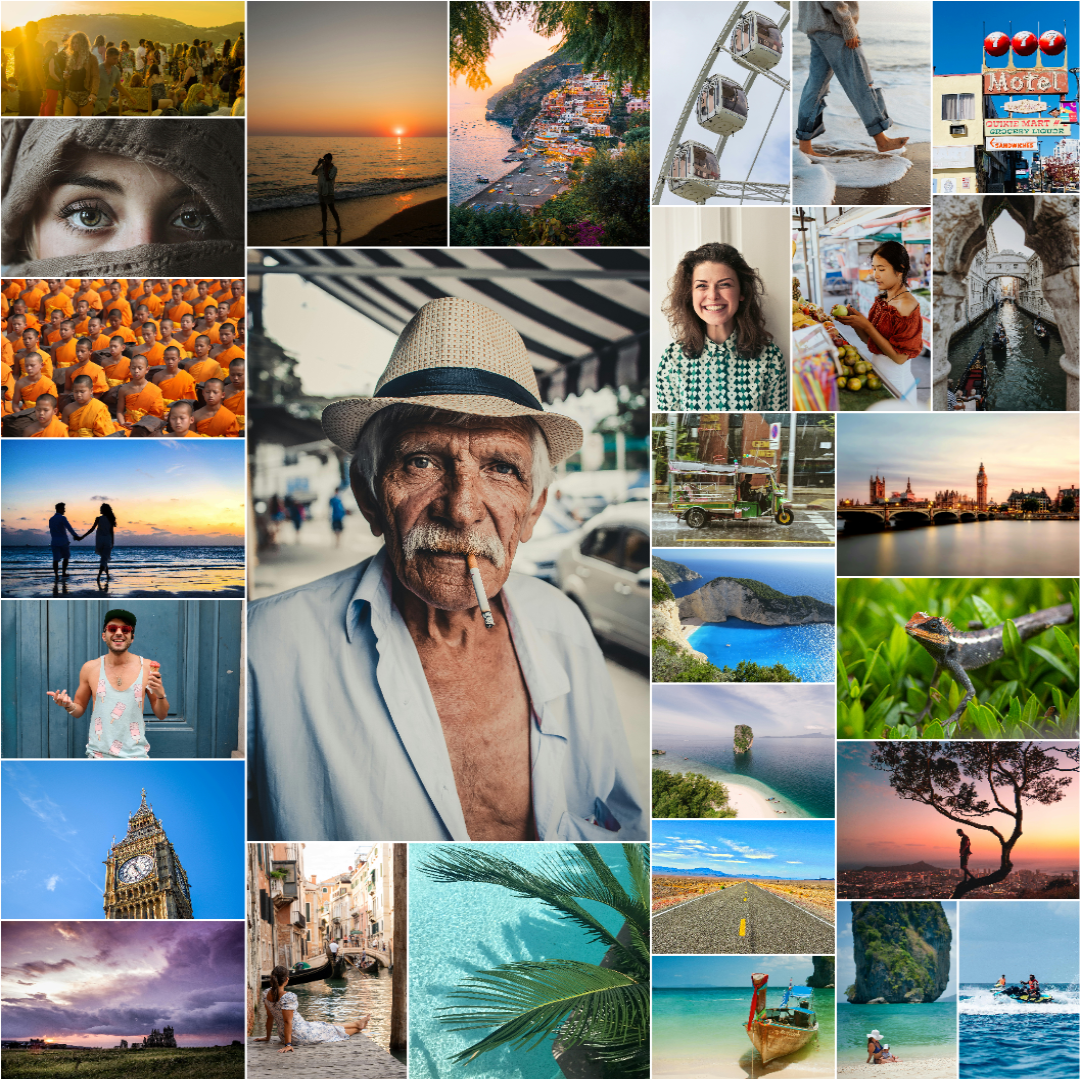
Add a handful of photos or a whole trip's worth — up to 300 — and an advanced genetic layout algorithm arranges them into an organic, gap-filling collage. Not a rigid grid or fixed template — every run will try to find a unique arrangement, and the more images you add, the better it gets. Export print-ready, or sized for social platform media. Everything runs locally in your browser: no uploads, no accounts, no installs.

Four simple steps

1

Add your images

Drag and drop your images here, or browse to upload. Supports JPEG, PNG, and WebP up to 50 MB each. For the best composition, we recommend using 20 or more images. Tap any image to crop it or give it extra space — ×2, ×3 or ×5 — to make it stand out.

2

Pick a format

Choose a print size (30×40 cm, A3, 50×70 cm…) or a screen format — Full HD, 4K, or a ready-to-post social size like a square post, a 9:16 story, or a banner. For print, the tool suggests a resolution that hits 300 DPI at your chosen size; for social, it matches each platform's exact pixel dimensions. You can always override it.

3

Create collage

Hit Create collage. The layout is generated entirely on your device — nothing is uploaded. Each run finds a different arrangement — hit Regenerate collage any time until you find one you love.

4

Export

Head to the Export step and download the full-resolution collage as PNG or JPEG. The save is instant — your images never leave your browser.

Why not just use a template?

Template-based collage tools give you a fixed grid of slots — you pour your photos in and you're done. For a handful of images, that's perfectly fine. But try fitting 40, 80, or 200 photos into a template and the cracks show: cropped faces, awkward gaps, every collage looking the same.

Collage Studio uses a genetic layout algorithm — the same class of optimisation used to solve problems too complex for brute force. It doesn't fill template slots; it searches for the arrangement that makes your specific set of images fill the canvas most completely, respecting each image's shape and the ones you've marked as featured.

With a handful of images

A fixed template is quick and works fine. The genetic solver will also produce a result, but the layout space is small — don't expect miracles with 5 photos.

With 20 or more images ✦

This is where the difference becomes obvious. More images means more combinations to explore — and the algorithm finds arrangements no template could anticipate. The more you add, the better it gets.

Good to know before you start

20+ images works best

With only a handful of images the layout can't always avoid gaps around the edges. More images give the program more combinations to explore — and more chances to fill the collage completely.

Each run finds a different layout

The layout algorithm is non-deterministic by nature — every run explores a different set of candidate arrangements. If the first result has gaps, try again. If it keeps falling short, the format or image count is the limiting factor.

Download as PNG or JPEG

Save a lossless PNG, or a smaller JPEG at a quality you control. You choose the pixel dimensions; the tool tells you the resulting DPI at your selected print size. Resolutions up to 16 000 × 16 000 px are supported on desktop. On phones and tablets, source images are processed at up to 1000 px to fit device memory — for full print resolution, use a desktop browser.

Common questions

Will my images be uploaded to a server?
No. The collage creation runs in your browser tab using optimized and efficient WebAssembly code. Your images are read from your device into browser memory and never transmitted anywhere. The server only serves the app itself — it never sees your images or the resulting collage. After each collage we do send a small amount of anonymous performance data (device class, generation duration, coverage statistics etc) to help improve the layout engine — but never your images or the finished collage. privacy policy for details.
How many images do I need?
The application supports between 3 and 300 images. For an optimal, gap-free composition, we recommend using 20 or more. With just 3 images, the number of successful layout combinations is very small, but the possibilities increase exponentially with each added image.
Can I control how the collage looks?
Yes. You can regenerate the entire layout until you find a composition you like. For individual adjustments, tap any image to crop it or give it extra emphasis (×2, ×3, or ×5) to make it stand out and take up more space.
How do I save the result?
When you're happy with the layout, head to the Export step and download the full-resolution collage to your device. You can export as a lossless PNG or a customizable JPEG. Since everything runs locally in your browser, the save is instant and your images never leave your computer.
Can I make a collage for social media?
Absolutely — alongside print sizes, the format picker has ready-made social presets at each platform's exact pixel size — square and portrait posts, 9:16 stories and reels, pins, plus covers and banners. Pick one and your collage is sized to post, no cropping needed.
How long does it take to create a collage?
Most layouts take between 5 and 30 seconds to generate. The processing time is directly tied to your hardware capabilities. The algorithm runs in parallel across your CPU cores, so a modern desktop computer will handle the math considerably faster than an older or low-end phone device.

Ready to try it?

Drop in your images and have a print-ready collage in under a minute — no sign-up, no install.

Make your collage now